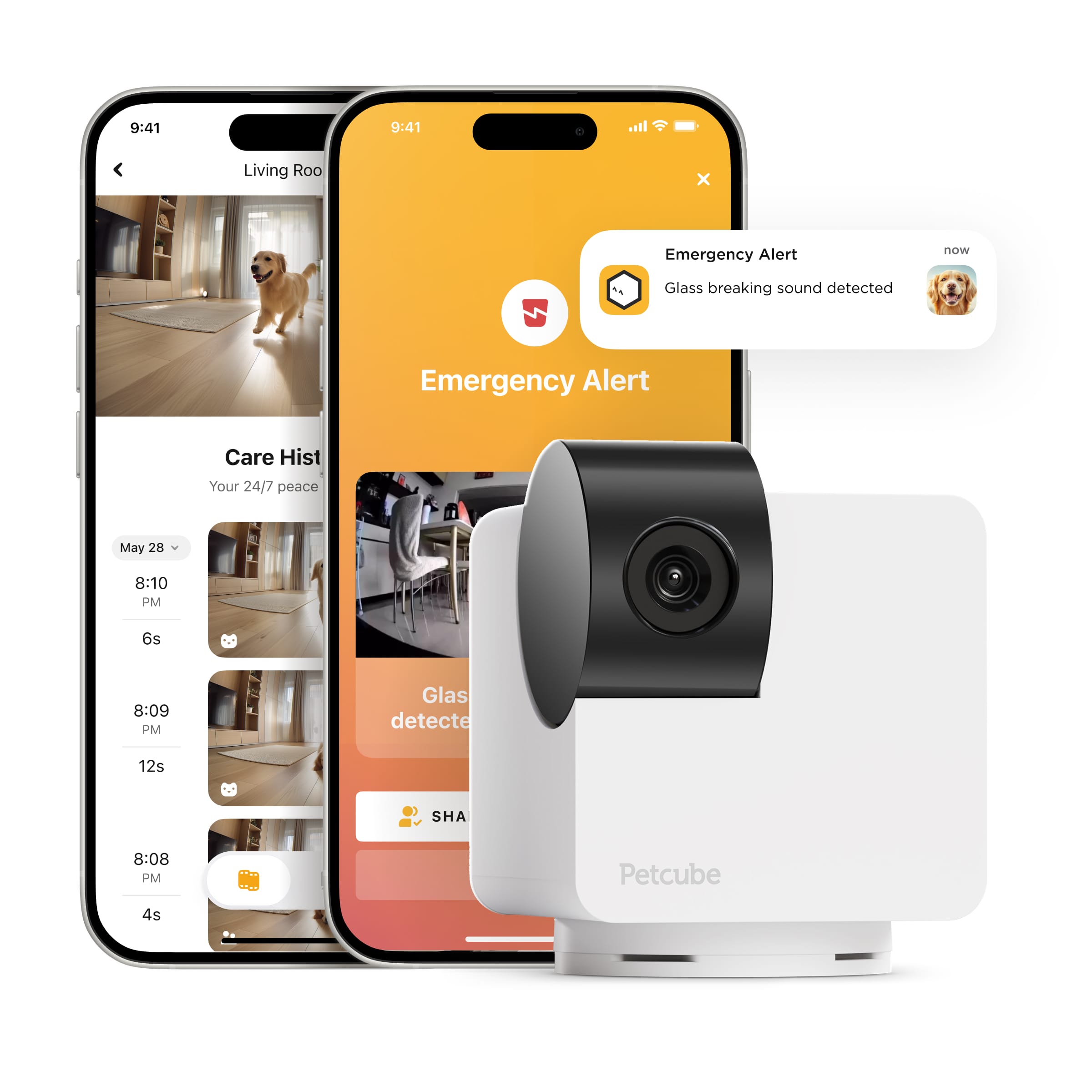
Petcube Cam 360 Setup and Features Guide: How to Get Started
The Petcube Cam 360 Setup is straightforward, but getting the most from the camera means understanding its app controls, pan-and-tilt functions, night vision, two-way audio, privacy mode, and optional Petcube Care features. In this guide, we’ll walk through the basic setup and the main features you should know before using it day to day.
Read the Full Petcube Cam 360 Review
Affiliate disclosure: Grexvora may earn a commission if you purchase through links on this page, at no additional cost to you.
Petcube Cam 360 Setup at a Glance
Setting up the Petcube Cam 360 starts with the Petcube app, a power connection, and a 2.4 GHz Wi-Fi network. After adding the camera in the app, you’ll follow the on-screen steps to connect it, scan the generated QR code with the camera, and complete the pairing process. Once connected, you can start using live view, pan-and-tilt controls, two-way audio, night vision, privacy mode, and other available features.
How to Set Up the Petcube Cam 360 Step by Step
Step 1: Download the Petcube App
Download the Petcube app from the App Store or Google Play, then create an account or sign in. The app is where you will add the Petcube Cam 360, complete the Wi-Fi setup, view the live feed, control the camera, and manage its main settings.
Step 2: Connect the Camera to Power and Wi-Fi
Plug the Petcube Cam 360 into a power outlet and make sure your phone is connected to a 2.4 GHz Wi-Fi network. In the Petcube app, choose the option to add a new device, select the Cam 360, and follow the on-screen instructions to begin the connection process.
Step 3: Scan the QR Code to Pair the Camera
The Petcube app will generate a QR code during setup. Hold your phone in front of the Petcube Cam 360 so the camera can scan the code, then wait while it completes the pairing process. Once the connection is confirmed, the camera should appear in the app and be ready for basic use.
Step 4: Test Live View and Camera Controls
Open the live feed in the Petcube app and test the main camera controls. Move the view using pan-and-tilt, check the video quality, try the digital zoom, and confirm that the camera responds correctly from your phone. This is also a good time to position the camera where it has a clear view of the area your pet uses most.
Step 5: Test Two-Way Audio, Night Vision, and Privacy Mode
Use the Petcube app to test two-way audio and confirm that you can hear the room and speak through the camera. Check night vision in a darker environment, then review the privacy mode settings so you know how to stop active monitoring when you want more privacy at home.
Petcube Cam 360 Features You Should Know
Once the Petcube Cam 360 is connected, most of its everyday functions are controlled through the Petcube app. The main features include motorized pan-and-tilt coverage, 1080p live video, night vision, two-way audio, digital zoom, privacy mode, and optional Petcube Care features for owners who want additional monitoring tools.
Petcube Cam 360 Features in Everyday Use
Key Features
Important Things to Know
Explore More Petcube Guides
Final Thoughts on Setting Up and Using the Petcube Cam 360
The Petcube Cam 360 setup is relatively straightforward once the app, power connection, and 2.4 GHz Wi-Fi network are ready. After pairing the camera, most day-to-day functions are controlled directly through the Petcube app, including live view, pan-and-tilt movement, two-way audio, night vision, and privacy mode. For owners who want additional monitoring tools such as video history and smart alerts, Petcube Care remains an optional upgrade rather than a requirement for basic use.
Read the Full Petcube Cam 360 Review